SuperBuilder: The Free, Open Source Desktop App for Claude Code
Claude Code is one of the most powerful AI coding agents available today. It can edit files, run terminal commands, reason through complex problems, and ship entire features in minutes. But until now, using it meant living in the terminal — no visual feedback, no cost visibility, no way to run multiple agents at once.
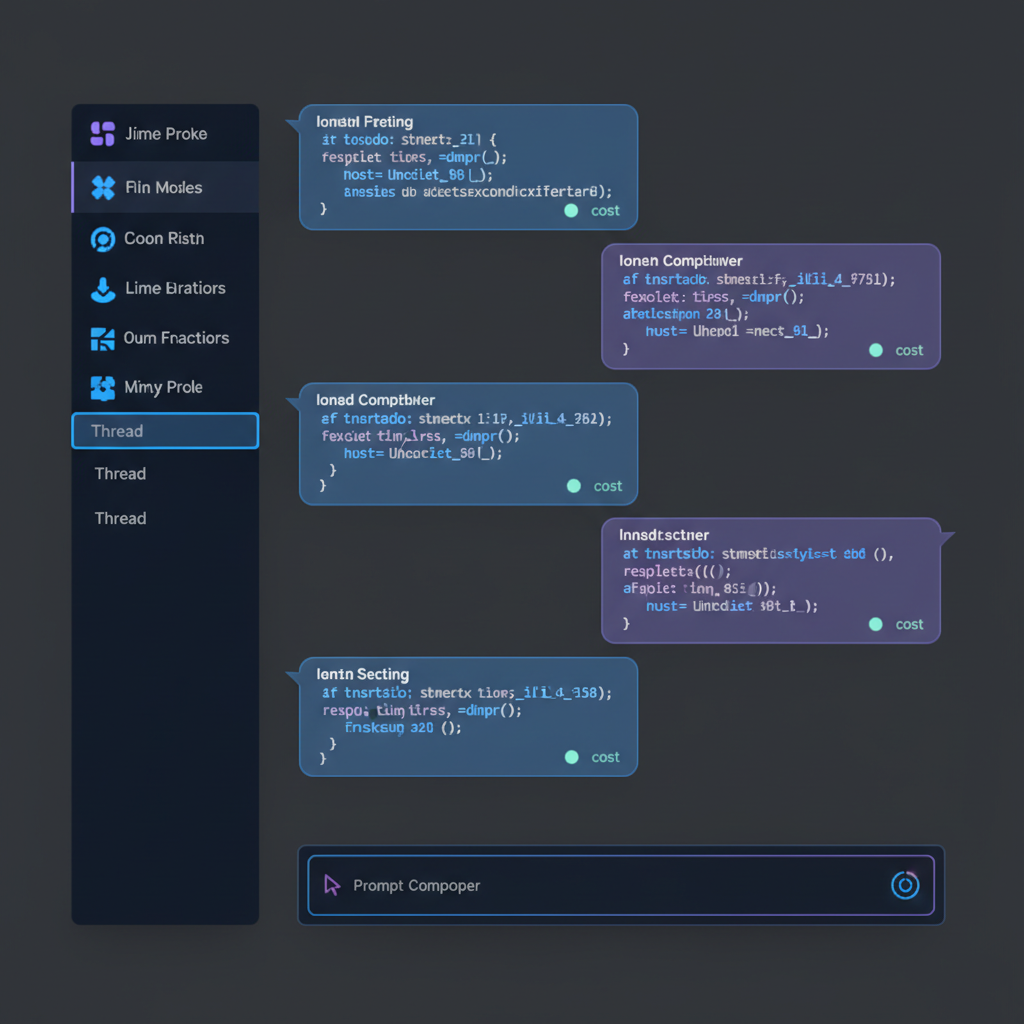
SuperBuilder changes that. It is a free, open source desktop app that wraps Claude Code in a polished native interface, giving you everything the CLI offers plus multi-agent threads, real-time cost tracking, a task queue, MCP-powered skills, execution modes, git diffs, notifications, and a dark-first UI designed for long coding sessions.
Whether you are a solo developer looking for a better Claude Code experience or a team lead evaluating AI coding tools, this guide covers every feature SuperBuilder offers and how to get started in under two minutes.
Why a Desktop App for Claude Code?
Claude Code is brilliant in the terminal. You type a prompt, it thinks, it edits your files, it runs commands. But as your usage grows, the terminal starts to show its limits:
- No cost visibility. You have no idea how much a single message costs until the bill arrives.
- One agent at a time. Want to run a refactor in one project while debugging another? Open another terminal tab, manage another session, lose context.
- No task queue. If Claude is busy with a long task, you cannot queue up the next one. You wait, or you forget.
- No visual diffs. Claude tells you it changed a file. You trust it, or you open a separate diff tool.
- No persistent history. Close the terminal, lose the conversation.
SuperBuilder solves every one of these problems while keeping the full power of Claude Code underneath. It does not replace Claude Code — it makes it dramatically more usable.
Feature Overview
Multi-Agent Threads
SuperBuilder lets you run multiple Claude Code sessions simultaneously, each in its own thread. Think of threads like browser tabs for AI agents. You can have one thread refactoring your authentication module while another writes tests for your API layer and a third generates documentation.
Each thread gets its own PTY process (via node-pty), its own conversation history persisted in SQLite, and its own cost tracker. Switch between threads instantly. The agents keep working in the background.
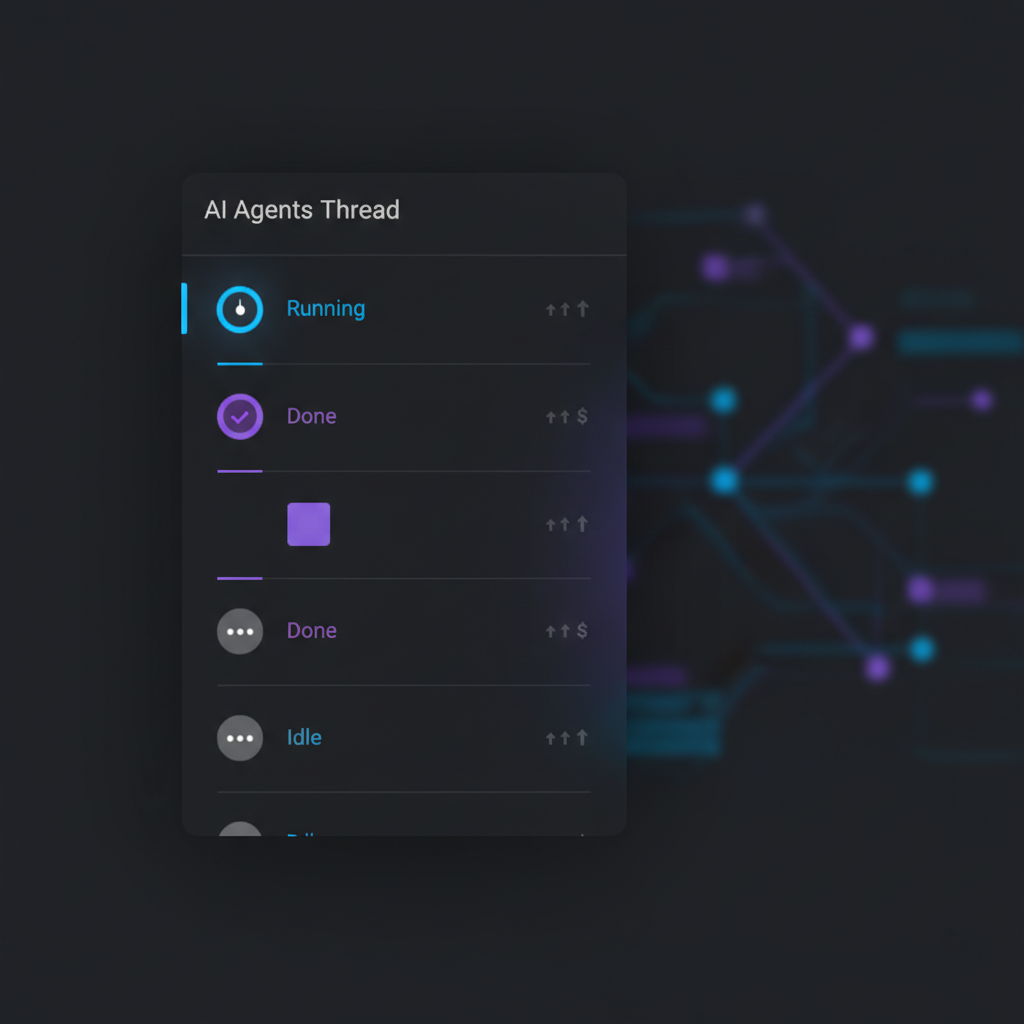
This is not just a convenience feature — it fundamentally changes how you work with AI. Instead of waiting for one task to finish before starting the next, you can keep all your work streams moving in parallel.
Cost Tracking Per Message
Every message in SuperBuilder shows its cost. Not an estimate, not an approximation — the actual token usage and dollar amount for that specific interaction. You can see at a glance which prompts are expensive and which are cheap.
SuperBuilder also tracks cumulative costs per thread and across your entire session. A large call alert system warns you when a single interaction exceeds $0.10 USD, so you are never surprised by an expensive response.

This level of visibility changes your behavior. You start crafting tighter prompts, breaking large tasks into smaller steps, and making more deliberate choices about when to use Claude's full reasoning power versus when a quick answer suffices.
Task Queue
One of SuperBuilder's most practical features is the built-in task queue. When Claude is busy processing a request in a thread, you can type your next prompt immediately. SuperBuilder queues it and sends it automatically as soon as the current task completes.
No more watching and waiting. No more forgetting what you wanted to ask next. Just keep typing, and SuperBuilder handles the sequencing. The queue works per-thread, so queuing a message in one thread does not block any other thread.
This feature alone can save you significant time during long coding sessions where you have a clear sequence of tasks to accomplish.
Execution Modes
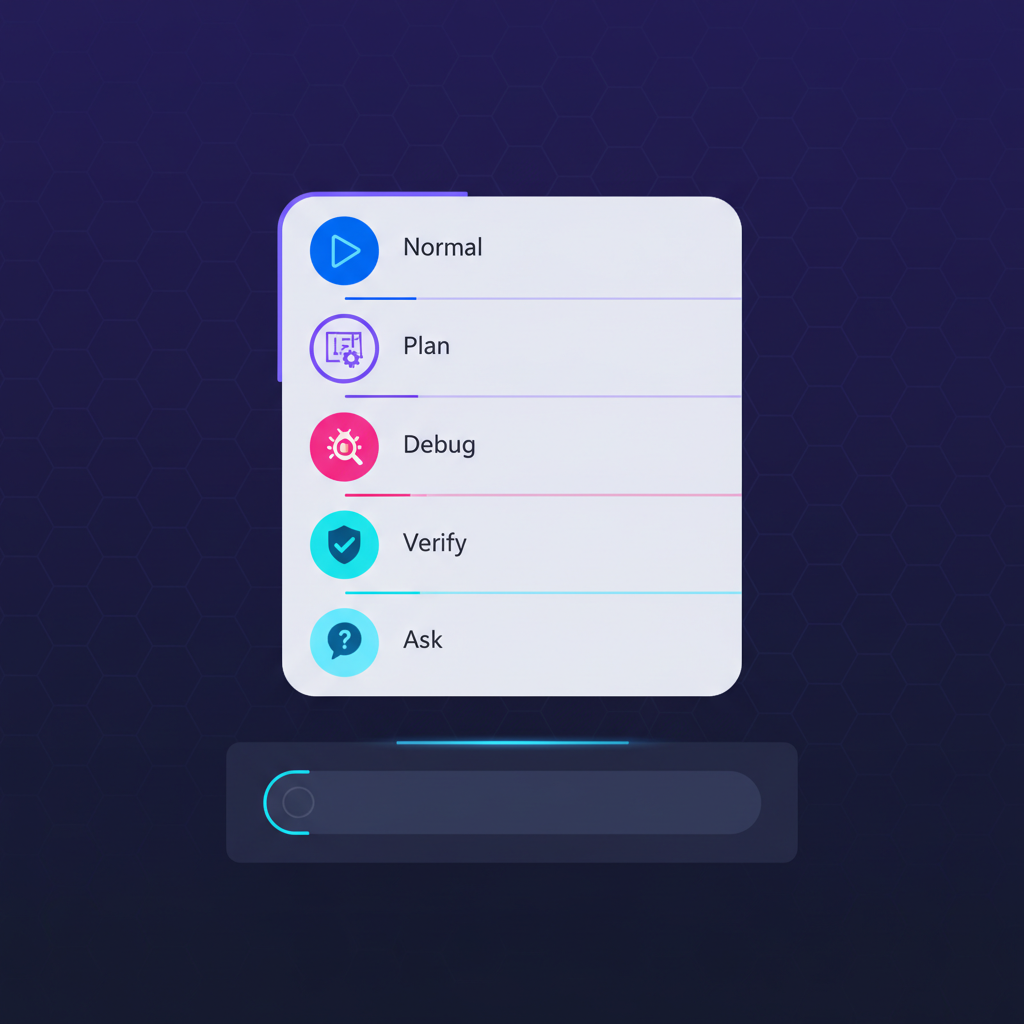
Not every prompt needs the same treatment. SuperBuilder offers five distinct execution modes that change how Claude approaches your request:
- Normal mode — Standard Claude Code behavior. Claude reads, thinks, edits, and runs commands freely.
- Plan mode — Claude analyzes the problem and produces a detailed plan before making any changes. Perfect for complex refactors where you want to review the approach first.
- Debug mode — Optimized for troubleshooting. Claude systematically forms hypotheses, gathers evidence, and narrows down the root cause. Includes a dedicated debug log panel that tracks hypotheses and findings.
- Verify mode — Claude reviews existing code or recent changes and provides a thorough assessment without making modifications.
- Ask mode — Claude answers your question without touching any files. Useful for architecture discussions or understanding unfamiliar code.
You can switch modes from a dropdown in the prompt composer, or SuperBuilder will suggest debug mode when it detects keywords like "bug," "fix," or "error" in your message. A subtle toolbar button appears — press Tab or click it to opt in.
MCP Skills: Browser and Image Generation
SuperBuilder ships with a built-in MCP (Model Context Protocol) server that gives Claude two powerful skills out of the box:
Web Browser Skill — Claude can open a real browser window, navigate to URLs, click elements, type text, take screenshots, and extract page content. This is not a headless simulation — it uses a persistent Electron BrowserWindow with a real Chromium session. You can watch Claude browse the web in real time.
Use cases include:
- Checking how your app looks in a browser after making changes
- Scraping documentation or API references
- Testing web forms and workflows
- Researching error messages or library documentation
Image Generation Skill — Claude can generate images using OpenAI's DALL-E directly from the conversation. Need a placeholder hero image, an icon concept, or a diagram? Just ask.
Both skills are managed in Settings and can be enabled or disabled individually. The MCP server runs locally on port 3457 and registers automatically with Claude Code's configuration.
Git Diffs and Version Control
When Claude modifies your files, SuperBuilder shows you exactly what changed. Inline diffs appear in the conversation, making it easy to review additions, deletions, and modifications without leaving the app.
This is critical for maintaining confidence in AI-generated code. You can see every change Claude proposes, approve or reject it mentally, and ask for revisions — all within the same conversation flow.
CLAUDE.md Editor
Every serious Claude Code user knows the importance of the CLAUDE.md file — it is the project-level instruction set that guides Claude's behavior. SuperBuilder includes a built-in editor for managing your CLAUDE.md files, making it easy to add project conventions, architecture notes, and coding standards that Claude will follow.
No more switching to a text editor to update your instructions. Edit them right where you use them.
Notifications and Dock Badge
When Claude finishes a long-running task, SuperBuilder sends a native macOS notification and updates the dock badge. This means you can switch to another app while Claude works and come back when it is done.
It sounds simple, but it transforms the workflow. Instead of staring at a terminal waiting for output, you can context-switch freely and trust that SuperBuilder will pull you back when there is something to review.
Dark-First UI
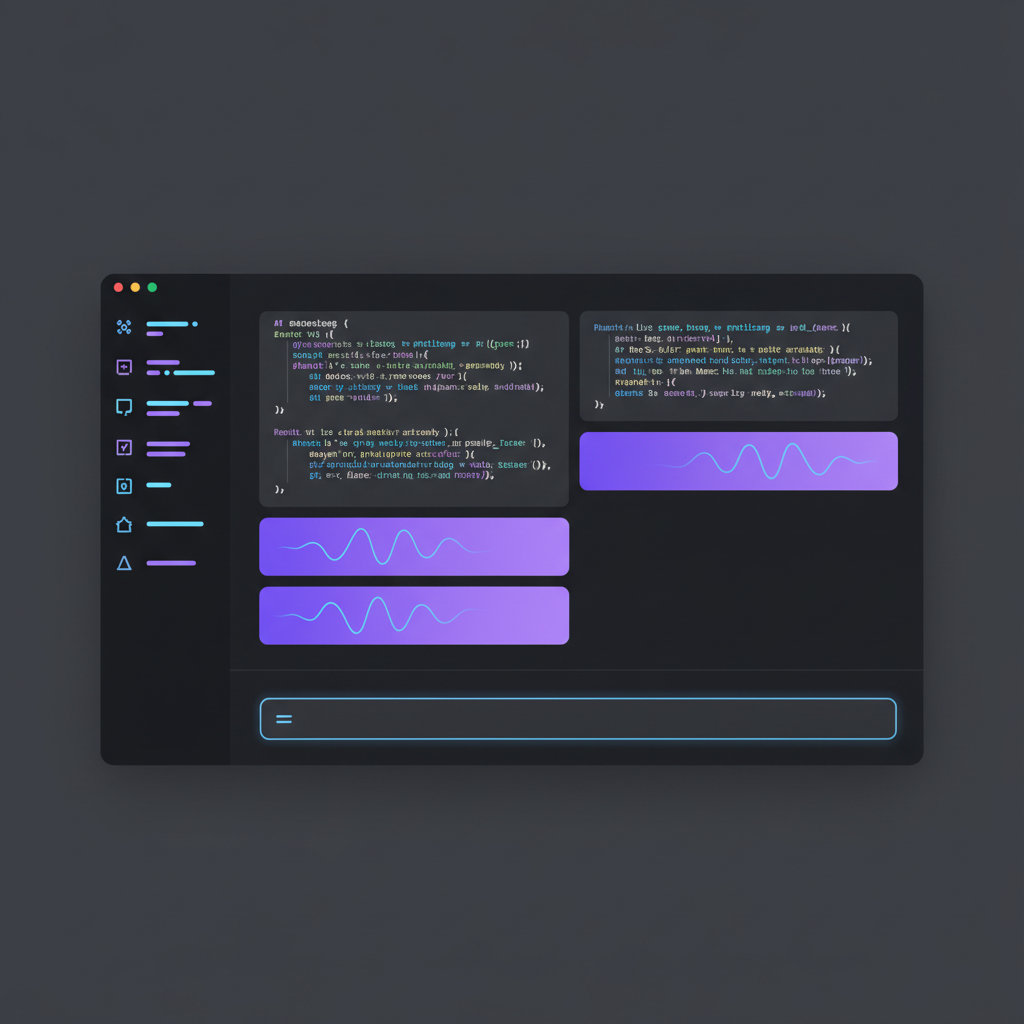
SuperBuilder is designed for developers who spend hours in their editor. The interface is dark by default, with careful contrast ratios that reduce eye strain during long sessions. The layout is clean and focused — a sidebar for thread management, a main conversation view, and a prompt composer at the bottom.
The maximum content width is set to 720 pixels for optimal readability, matching the line lengths you are used to in code editors and documentation sites.
Quick Start: From Download to First Prompt in Two Minutes
Getting started with SuperBuilder takes almost no time. Here is the complete process:
Step 1: Download
Head to superbuilder.sh/download and grab the latest release for your platform. SuperBuilder supports macOS with both Apple Silicon and Intel architectures. The download is a standard .dmg file.
Step 2: Install
Open the .dmg and drag SuperBuilder to your Applications folder. Launch it. On first run, macOS may ask you to confirm since the app is downloaded from the internet — click Open.
Step 3: Prerequisites
SuperBuilder requires Claude Code to be installed on your system. If you have not already, install it via npm:
You will also need an active Anthropic API key or a Claude Max subscription. SuperBuilder uses Claude Code under the hood, so it inherits whatever authentication you have configured.
Step 4: Add a Project
Click the + button in the sidebar to add your first project. Select a folder on your machine — this is the working directory Claude will operate in. SuperBuilder creates a project entry and starts indexing your files for the cmd+P file palette.
Step 5: Send Your First Prompt
Type a prompt in the composer at the bottom of the screen. Something like:
"Look at this codebase and give me a high-level overview of the architecture."
Press Enter (or Cmd+Enter). Claude Code spawns in the background, reads your project files, and streams its response in real time. You will see the cost of the interaction displayed alongside the response.
That is it. You are running Claude Code in a native desktop app with full conversation history, cost tracking, and multi-thread support.
Step 6: Explore
From here, try these next steps:
- Open a second thread — Click the new thread button and start a parallel task.
- Try plan mode — Switch the execution mode dropdown to "Plan" and ask Claude to refactor something.
- Queue a message — While Claude is responding, type your next prompt and hit Enter. It will queue automatically.
- Use cmd+P — Press Cmd+P to open the file palette and quickly reference or navigate to any file in your project.
- Enable skills — Go to Settings and enable the web browser or image generation skills.
Architecture: How SuperBuilder Works
SuperBuilder is fully open source, and understanding its architecture helps you get the most out of it — and contribute if you are so inclined.
The Stack
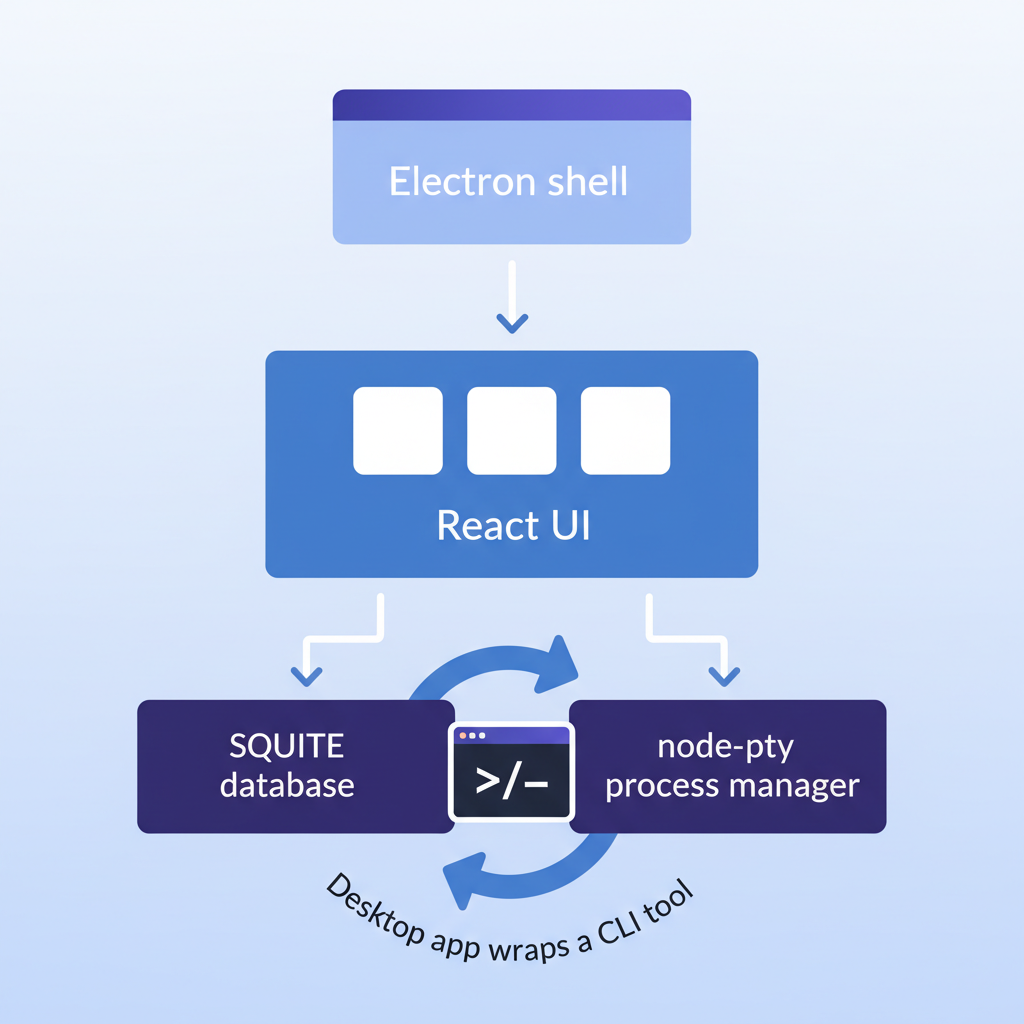
- Electron 40 — Native desktop shell with full OS integration (notifications, dock badge, file system access).
- React 19 — UI framework for the renderer process.
- TypeScript — End to end, both main and renderer processes.
- Vite 7 — Fast development builds and hot module replacement.
- SQLite — Local database for threads, messages, projects, drive files, variables, skills, debug logs, and feature flags. All data stays on your machine.
- node-pty — Pseudo-terminal library that spawns Claude Code CLI processes. Each thread gets its own PTY.
How Claude Code Integrates
SuperBuilder spawns Claude Code as a child process using node-pty with the following flags:
The stream-json output format gives SuperBuilder structured JSON events for every message, tool use, cost update, and status change. These events are parsed in real time and rendered in the conversation view.
The global window API (window.superBuilder) bridges the Electron main process and the React renderer via IPC channels. Key channels include thread:message for streaming events, thread:status-change for agent state updates, and messages:list/add/clear for conversation persistence.
Data Storage
Everything is stored locally in SQLite:
- thread_messages — Every conversation event, fully persisted.
- drive_folders — Project asset management (the Drive feature).
- project_files — File index for cmd+P search.
- variables — User-defined variables that expand in prompts via
@namesyntax. - skills — MCP skill configurations and credentials.
- debug_logs — Hypothesis tracking for debug mode sessions.
No data leaves your machine unless you explicitly send it to Claude via the Anthropic API. SuperBuilder itself has no telemetry, no analytics, and no phone-home behavior.
The Drive: Project Asset Management
SuperBuilder includes a built-in file management system called the Drive. Each project gets its own drive folder where you can store assets — screenshots, design files, reference documents, and more.
Drive files are searchable from the prompt composer using @ mentions, making it easy to reference visual assets or documents in your conversations with Claude. The Drive also includes a file viewer with support for images and videos.
Files are stored locally at ~/.supercoder/drive/ organized by project, and the entire system is indexed for instant search via the cmd+P file palette.
Variables: Reusable Prompt Fragments
SuperBuilder's variable system lets you define reusable text snippets that expand in your prompts. Create a variable called stack with the value "React 19, TypeScript, Tailwind CSS, Prisma" and then reference it as @stack in any prompt.
Variables are managed in Settings and stored in SQLite. They are especially useful for:
- Project-specific conventions you reference frequently
- API endpoints or configuration values
- Standard instructions you include in many prompts
- Team coding standards
Debug Mode: Systematic Troubleshooting
Debug mode deserves special attention because it goes beyond a simple prompt wrapper. When you activate debug mode, SuperBuilder:
- Instructs Claude to form explicit hypotheses about the bug.
- Tracks each hypothesis in a dedicated debug log panel.
- Records evidence gathered (log output, variable values, stack traces).
- Provides a structured view of the debugging process.
The debug log panel groups entries by hypothesis and includes an expandable JSON viewer for detailed data. An HTTP debug server runs locally on port 3456, and all debug logs are stored in SQLite per thread.
This structured approach to debugging is significantly more effective than simply asking Claude to "fix this bug." It mirrors how experienced developers actually debug — form a hypothesis, gather evidence, confirm or reject, repeat.
Why Free and Open Source?
SuperBuilder is completely free. No paid tiers, no feature gates, no "upgrade to Pro" prompts. The entire codebase is open source and available on GitHub.
The philosophy behind this decision is straightforward: the best developer tools should be accessible to everyone. Claude Code itself requires an API key or subscription, and that cost is unavoidable — it is the price of running a frontier AI model. But the interface you use to interact with Claude Code should not add another paywall on top.
By making SuperBuilder open source, we also ensure:
- Transparency — You can read every line of code. You know exactly what the app does with your data (nothing leaves your machine).
- Community improvement — Developers worldwide can contribute features, fix bugs, and extend the platform.
- Longevity — Even if the core team moves on, the community can maintain and evolve the project.
- Trust — In an era of AI tools with opaque data practices, open source is the strongest guarantee of user respect.
Community and Contributing
SuperBuilder is built by developers, for developers. The project welcomes contributions of all sizes — from typo fixes to major features.
How to Contribute
- Fork the repository on GitHub.
- Clone your fork and install dependencies with
npm install. - Run the dev server with
npm run dev— this starts both the Electron main process and the Vite dev server with hot reload. - Make your changes and submit a pull request.
The codebase is well-structured with clear separation between the Electron main process (electron/), the React renderer (src/), and shared types (shared/). Key directories include:
electron/services/— Core services (PTY management, drive, debug server, MCP skills, file indexer, title generation)electron/ipc/— IPC handler definitions for main-renderer communicationsrc/components/— React components (ThreadView, Settings, Drive, FilePalette)shared/contracts.ts— Shared TypeScript types used across both processesshared/prompts/— Centralized prompt templates for execution modes
Areas Where Help Is Wanted
- Linux support — SuperBuilder currently targets macOS. Linux packaging and testing would be a valuable contribution.
- Windows support — Same as above for Windows users.
- New MCP skills — The skill system is extensible. Database querying, Slack integration, deployment triggers — the possibilities are wide open.
- Accessibility — Screen reader support, keyboard navigation improvements, and high contrast themes.
- Localization — Interface translations for non-English speakers.
Frequently Asked Questions
Do I need a Claude API key to use SuperBuilder?
Yes. SuperBuilder is a desktop interface for Claude Code, which requires either an Anthropic API key or a Claude Max subscription. SuperBuilder itself is free — you only pay for the AI usage through Anthropic.
Is my code sent to SuperBuilder's servers?
No. SuperBuilder has no servers. Everything runs locally on your machine. Your code is sent to Anthropic's API through Claude Code, just as it would be if you used the CLI directly. SuperBuilder adds no additional data transmission.
Can I use SuperBuilder with other AI models?
Currently, SuperBuilder is built specifically for Claude Code. Supporting other AI coding agents is a possibility for the future, but the current focus is on providing the best possible Claude Code experience.
How does SuperBuilder compare to Cursor or Windsurf?
Cursor and Windsurf are AI-enhanced code editors — they replace your IDE. SuperBuilder takes a different approach: it is a dedicated AI agent interface that works alongside your existing editor. You keep using VS Code, Neovim, Zed, or whatever you prefer. SuperBuilder handles the AI agent workflow separately.
This separation has advantages. Your editor stays fast and focused on editing. SuperBuilder stays focused on AI interaction. And you are not locked into any particular editor's ecosystem.
Is SuperBuilder stable enough for daily use?
Yes. SuperBuilder has been through extensive reliability work including zombie thread detection and cleanup, spawn timeout protection, queue processing hardening, and broadcast-based IPC to prevent lost messages. The SQLite database ensures conversation history is never lost, and the task queue ensures messages are never dropped.
How do I update SuperBuilder?
SuperBuilder includes an in-app update notification system. When a new version is available, you will see an update button in the sidebar. Click it to download and install the latest release.
Comparison: SuperBuilder vs. Claude Code CLI
| Feature | Claude Code CLI | SuperBuilder |
|---|---|---|
| AI coding agent | Yes | Yes (same engine) |
| Multi-agent threads | No (one per terminal) | Yes (unlimited) |
| Cost tracking | No | Yes (per message) |
| Task queue | No | Yes |
| Conversation history | Session only | Persistent (SQLite) |
| Git diffs in context | No | Yes |
| Execution modes | Manual prompt engineering | Built-in (plan/debug/verify/ask) |
| MCP skills | Manual setup | Built-in (browser, image gen) |
| Notifications | No | Native OS notifications |
| File palette (cmd+P) | No | Yes |
| CLAUDE.md editor | External editor | Built-in |
| Dark UI | Terminal dependent | Purpose-built |
| Cost | Free | Free |
| Open source | Yes | Yes |
What's Next for SuperBuilder
SuperBuilder is under active development. The roadmap includes expanded MCP skill support, deeper git integration, collaborative features for teams, and performance optimizations for very large projects.
The project follows a rapid release cadence with CI/CD pipelines that produce dual-architecture macOS builds automatically. Every release is tagged on GitHub with full changelogs.
Get Started Today
SuperBuilder is the free, open source Claude Code desktop app that developers have been asking for. It takes everything powerful about Claude Code and makes it more visible, more manageable, and more productive.
Download SuperBuilder now at superbuilder.sh/download and experience Claude Code the way it was meant to be used — with full visibility, parallel agents, and a native interface that gets out of your way.
The source code is available on GitHub. Star the repo, file issues, submit pull requests. SuperBuilder is built by the community, for the community.

SuperBuilder is an independent open source project. Claude and Claude Code are products of Anthropic. SuperBuilder is not affiliated with or endorsed by Anthropic.
